 PreGuru
01
ALL IN ONEALL IN ONE
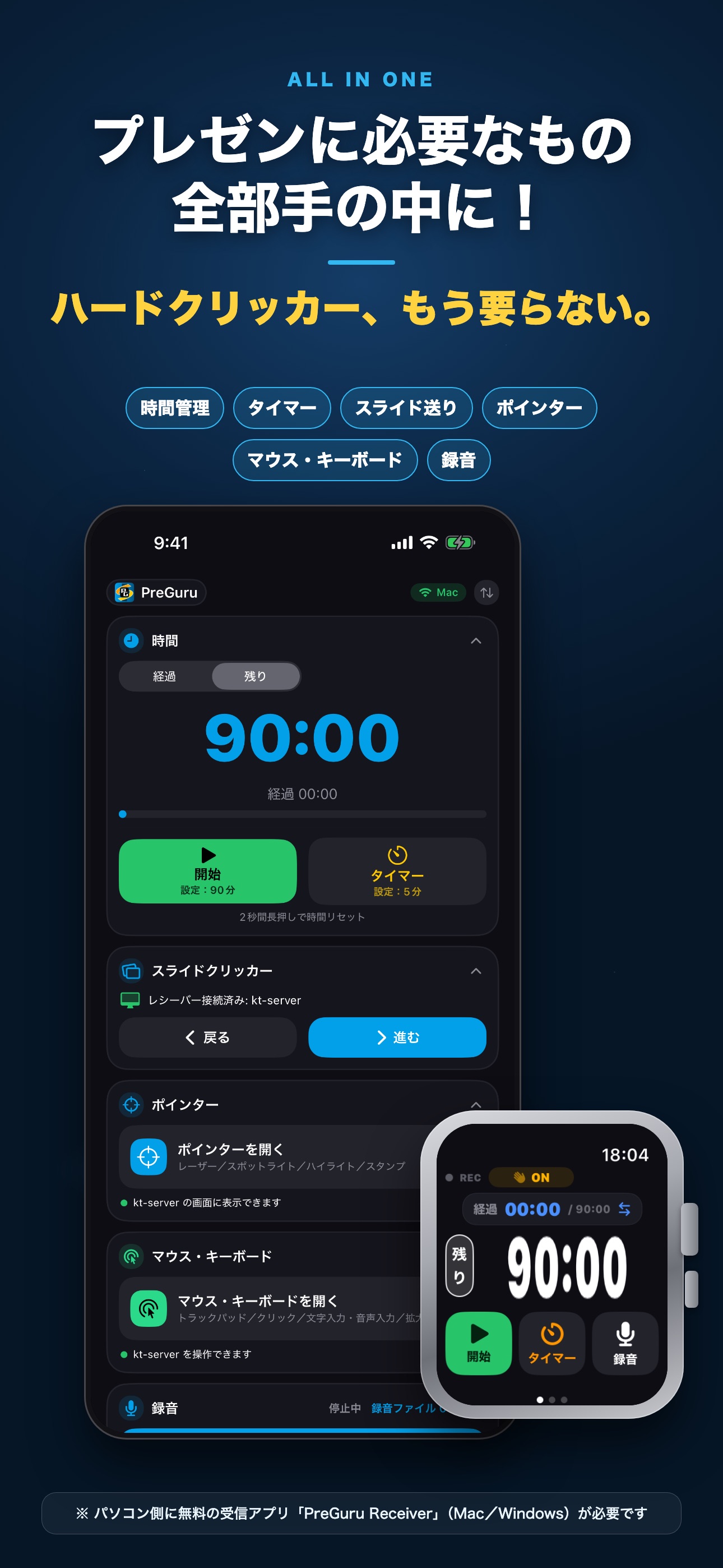
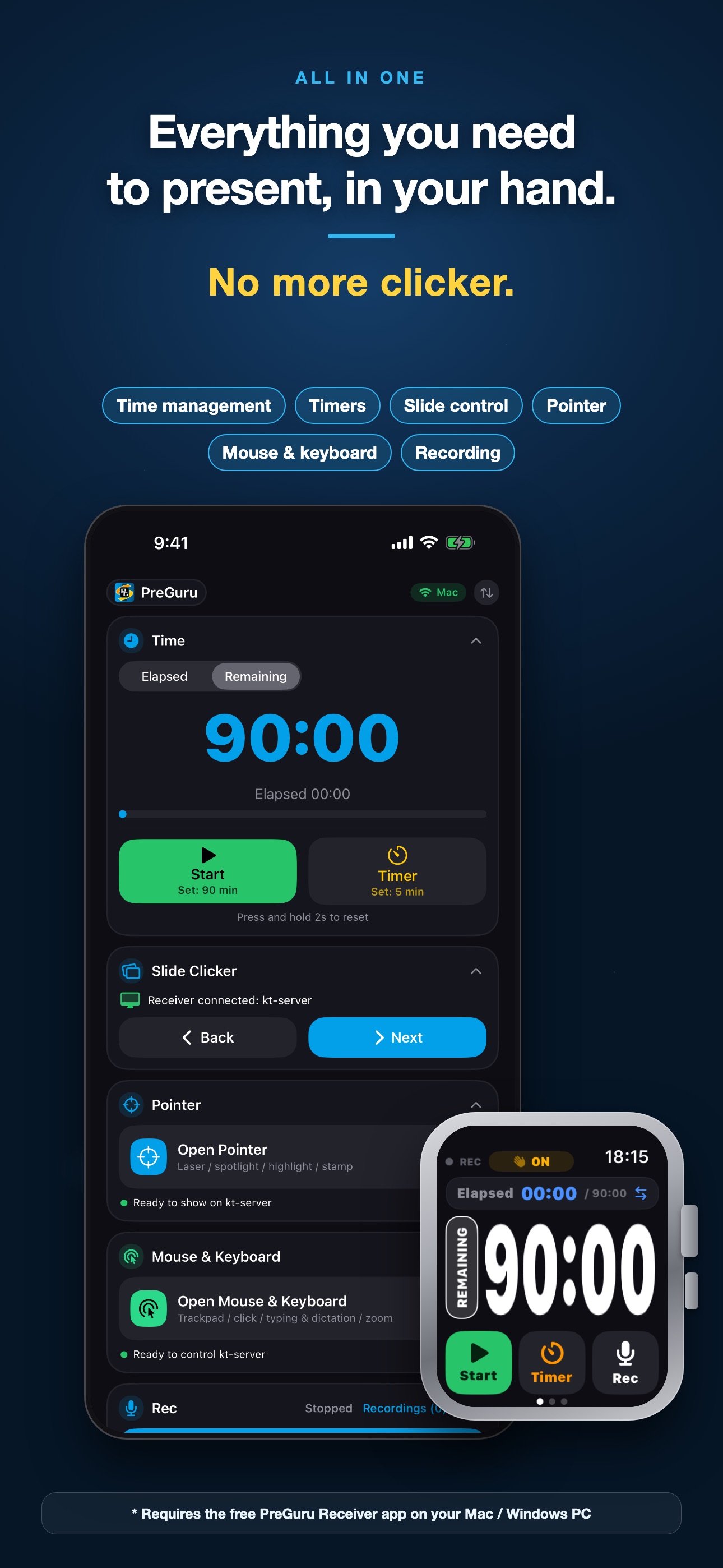
時間管理・タイマー・スライド送り・ポインター・マウス・キーボード・録音が、iPhoneとApple Watchに全部入り。ハードクリッカーの代わりになります。Time management, timer, slide control, pointer, mouse, keyboard and recording — all in your iPhone and Apple Watch. Use it in place of a clicker.
PRESENTATION, ORCHESTRATED.
ハードクリッカーはもう要らないiPhoneアプリ PreGuruにプレゼンに必要な機能がALL in One!No more hard clicker.Everything you need to present, in one iPhone app: PreGuru. ALL in One!
時間管理、タイマー、スライド送り、ポインター、マウス、キーボード、録音。iPhoneとApple Watchに、全部入り。Wi-Fi・USB・Bluetoothでつながります。Time management, timer, slide control, pointer, mouse, keyboard and recording — all in your iPhone and Apple Watch. Connect over Wi-Fi, USB or Bluetooth.


iPhone / Apple Watchアプリ:近日公開予定(無料で始められます)iPhone / Apple Watch app: coming soon (free to start)iPhone / Apple Watchアプリ:App Storeで無料ダウンロード(フルバージョンはアプリ内課金)iPhone / Apple Watch app: free on the App Store (Full Version via in-app purchase)
※ パソコン側に、無料の受信アプリ「PreGuru Receiver」(Mac/Windows)が必要です(入手先はこちら)。「ハードクリッカーはもう要らない」は、別売りの機器が要らないという意味です。* The free “PreGuru Receiver” app (Mac / Windows) is required on your computer (get it here). “No more hard clicker” means no separate clicker device to buy.


新しい機能や、接続の安定化は、iPhoneアプリと Receiver(Mac/Windows)の両方に入ります。どちらかが古いと、新しい機能が使えなかったり、接続が不安定になったりすることがあります。New features and connection fixes ship in both the iPhone app and the Receiver (Mac / Windows). If either one is out of date, new features may be missing or the connection may be less stable.
接続が不安定なとき:① iPhoneの PreGuru を完全に終了して開き直す ② Receiver の Bluetooth をオフ→オン ③ USB または Wi-Fi に切り替える(本番では USB が最も確実です)。詳しくは FAQ をご覧ください。If the connection is unstable: (1) fully quit PreGuru on the iPhone and reopen it; (2) switch the Receiver’s Bluetooth off and on; (3) switch to USB or Wi-Fi (USB is the most dependable on stage). See the FAQ for details.
ALL-IN-ONE.
01
時間管理・タイマー・スライド送り・ポインター・マウス・キーボード・録音が、iPhoneとApple Watchに全部入り。ハードクリッカーの代わりになります。Time management, timer, slide control, pointer, mouse, keyboard and recording — all in your iPhone and Apple Watch. Use it in place of a clicker.
02
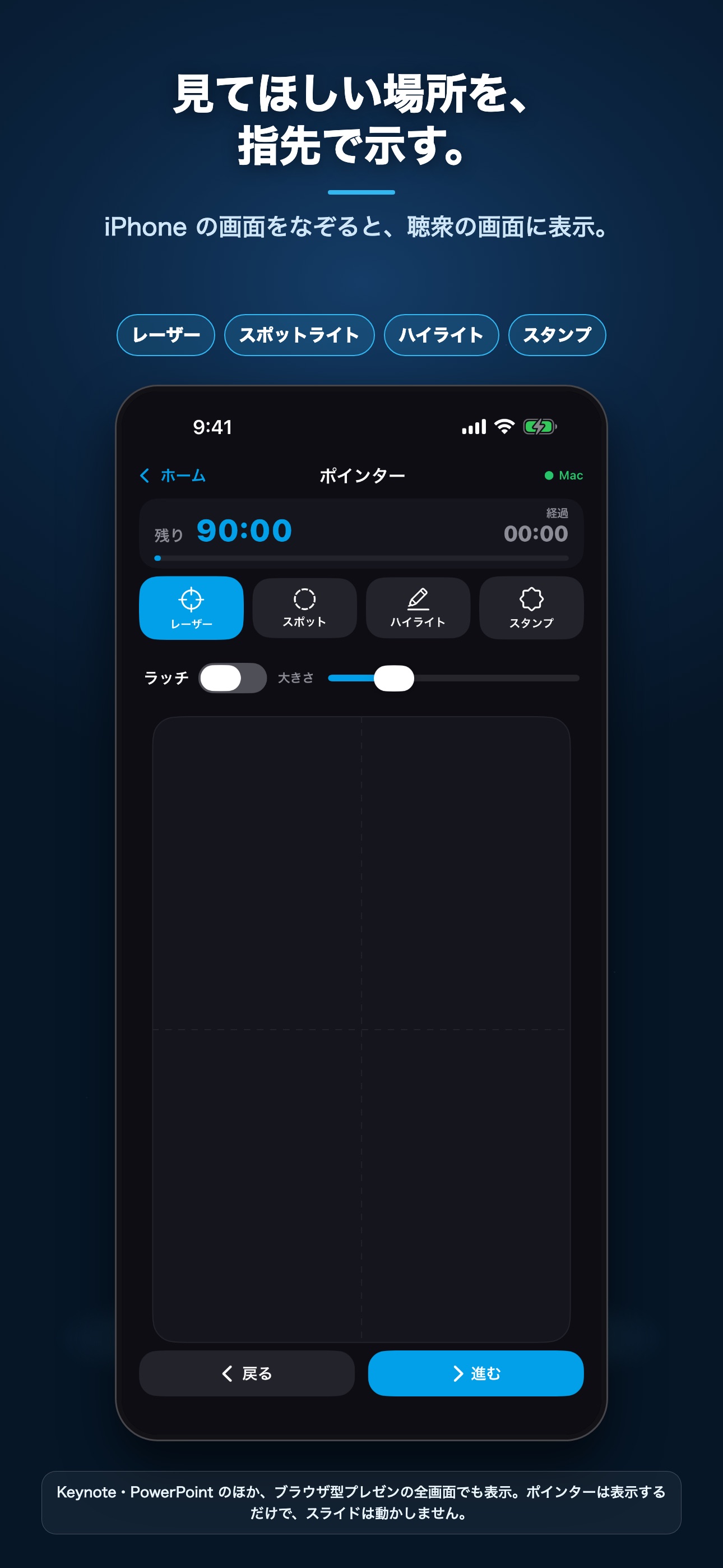
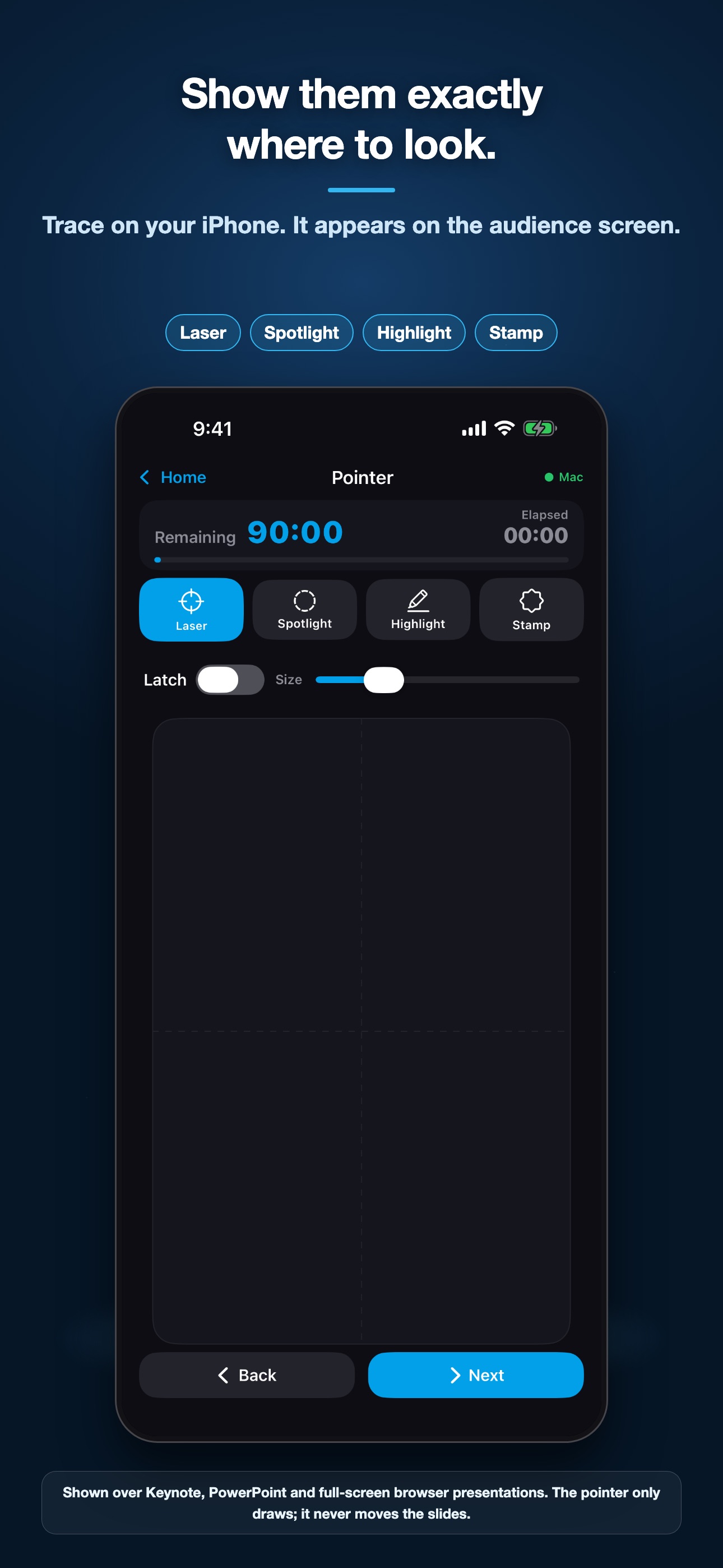
03
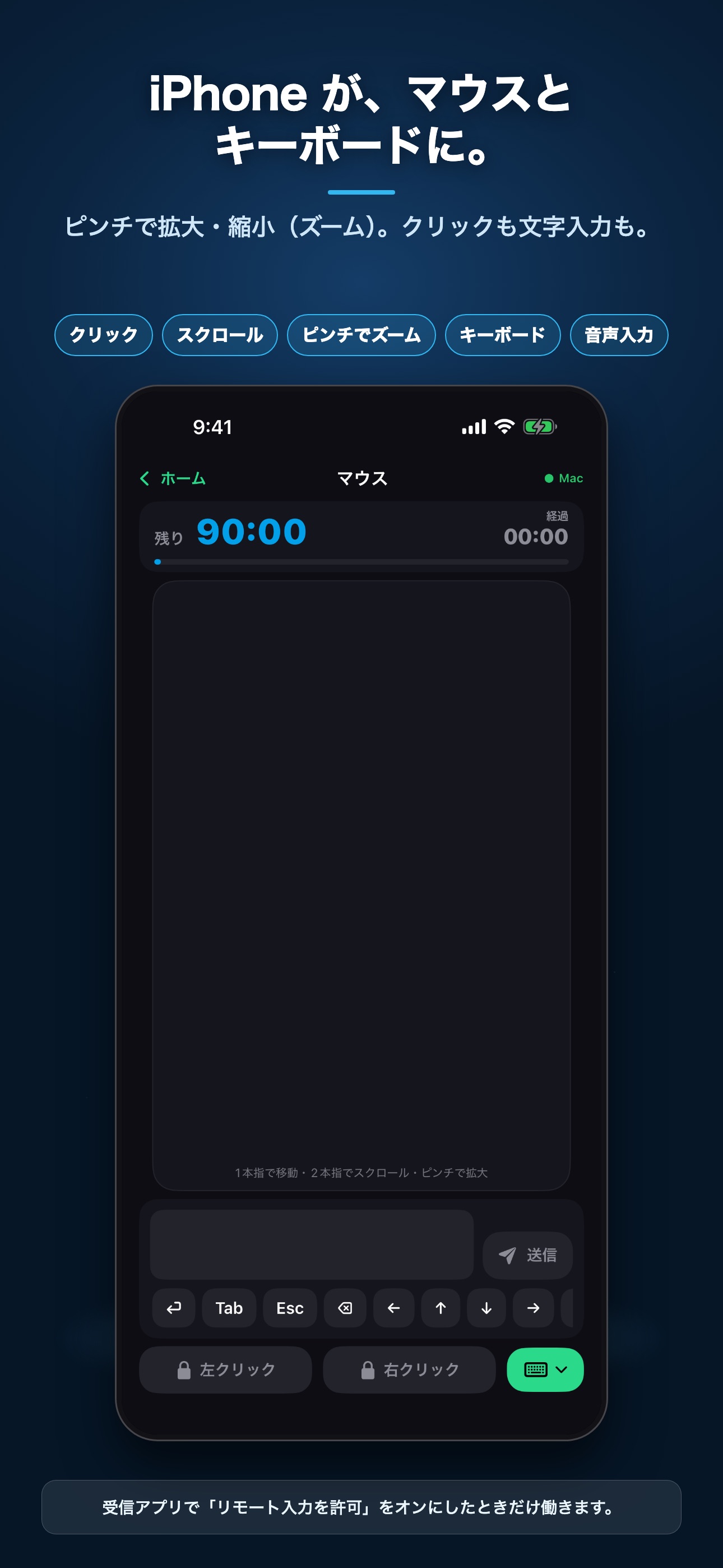
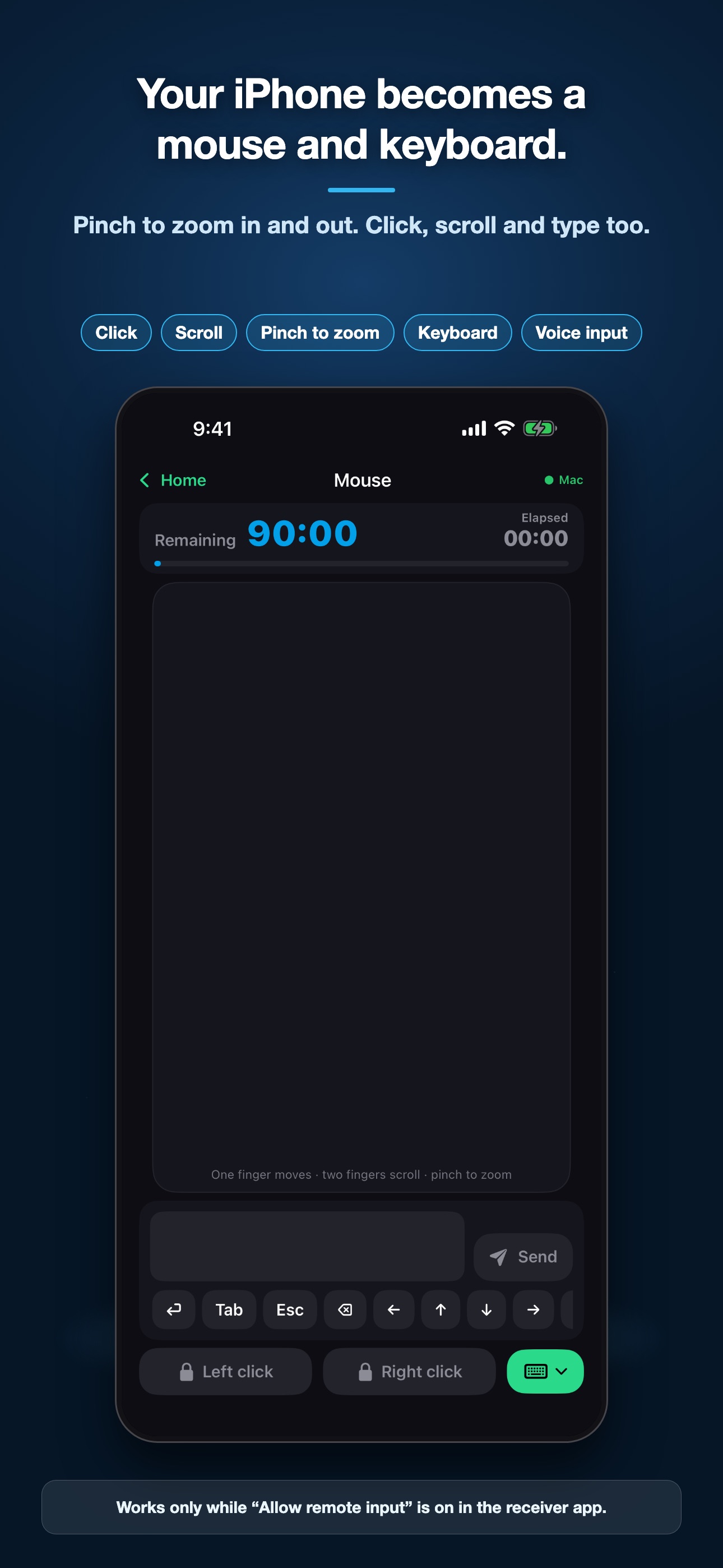
04
05
CONNECTIVITY ・ 通信基盤CONNECTIVITY
会場のWi-Fiが使えなくても、USBまたはBluetoothでつながります。登壇の直前に「つながらない」で慌てません。Even if the venue Wi-Fi is not available, USB or Bluetooth keeps you connected. No last-minute panic before you go on stage.
スライド送り・ポインター・マウスには、無料の受信アプリ PreGuru Receiver(Mac / Windows)が必要です。ポインターとマウスは受信アプリ 1.2 以降で使えます。マウス・キーボード操作は、受信アプリで「リモート入力を許可」をオンにしたときだけ働きます。Apple Watchがなくても、iPhoneだけで使えます。Google Slides、Canva、Prezi は各社の商標で、各社の公式対応を示すものではありません。Slide control, pointer and mouse need the free PreGuru Receiver app (Mac / Windows). The pointer and mouse work with Receiver 1.2 or later. Mouse and keyboard input works only when “Allow remote input” is switched on in the Receiver. No Apple Watch? Everything still works from your iPhone alone. Google Slides, Canva and Prezi are trademarks of their respective owners; this is not an official integration or endorsement.
アプリでも、ブラウザ型プレゼンでも使える。WORKS IN APPS AND IN THE BROWSER.
矢印キーでスライドを送れるプレゼンソフトやブラウザ型プレゼンで使えます(各名称は各社の商標で、公式対応を示すものではありません)。ブラウザを全画面にしても、ポインターとカーソルは重ねて表示されます。iPhoneとMac / Windows用の無料Receiverが必要です。プレゼン画面を最前面にしてお使いください。Works with presentation software and browser-based presentations that accept arrow-key navigation (names are trademarks of their owners; not an official integration). In full-screen browser mode the pointer and cursor are still drawn on top. Requires iPhone and the free Mac / Windows Receiver. Keep your presentation in the foreground.
SEE IT WORK
レーザー、スポットライト、ハイライト、スタンプ。そしてマウスとキーボード。実際のMacの画面での動作です(約45秒)。ハードクリッカーはもう要りません。 Laser, spotlight, highlight and stamps — plus mouse and keyboard. This is the real thing on a real Mac (about 45 seconds). No more hard clicker.
次の登壇から、クリッカーを持たずに。 Leave the clicker at home for your next talk.
アプリは無料。時間管理・スライド送りはずっと無料。フルバージョン(買い切り ¥1,200/US$12.99)でポインター・マウス・キーボード・エアスワイプ・録音も。サブスクなし・アカウント登録なし。受信アプリ(Mac/Windows)は無料です。 The app is free. Time management and slide control stay free. The Full Version (one-time US$12.99 / ¥1,200 in Japan) adds pointer, mouse & keyboard, Air Swipe and recording. No subscription, no account. The Mac / Windows receiver is free.
フルバージョンはアプリ内課金です。以前に有料版を購入された方は、追加のお支払いなしで、そのまま全機能をお使いいただけます。The Full Version is an in-app purchase. If you bought the paid version before, you keep every feature at no extra cost.
SEE IT WORK
実際の動作です。クリッカーは握っていません。手元も演台も見ずに、話しながら送れます。 This is the real thing. No clicker in hand. Keep talking, keep your eyes on the room.
※ 時計の面を自分に向けて立て気味に構えてください。面が水平だと反応しません。振ってよいタイミングは、上がる振動が2回で知らせます。 Hold the watch face toward you, fairly upright — a flat face will not register. Two rising taps on your wrist tell you when a flick will land.
KEEP IT AWAKE
Apple Watch は、画面に触れてから70秒は起きています。本番前の3つの設定で眠りにくくし、それでも手首に「下がる振動」が来たら、文字盤を指で軽く1回「トン」。それだけで次の70秒も振れます。1回では表示は変わりません(経過/残りの切り替えは2回、エアスワイプのON/OFFは3回)。 The Apple Watch stays awake for 70 seconds after you touch the screen. Three settings before the talk make it harder to fall asleep; if you still feel the falling buzz on your wrist, tap the face lightly once. That alone gives you the next 70 seconds. A single tap never changes the display (double tap switches elapsed/remaining; triple tap toggles Air Swipe).
図解アニメ・無音・約30秒。設定の手順は「はじめかたガイド」の本番前の推奨設定にあります。 Illustrated, silent, about 30 seconds. Step-by-step settings are under Recommended settings before your talk.
EXPLORE BY DEVICE
下のタブを選ぶと、それぞれの機能と使い方に切り替わります。Select a tab below to see its features and how it works.
01 / APPLE WATCH ORCHESTRATION
01 / 時間・タイマー・録音Timing, timer & recording
01 / YOUR WRIST, IN CONTROL
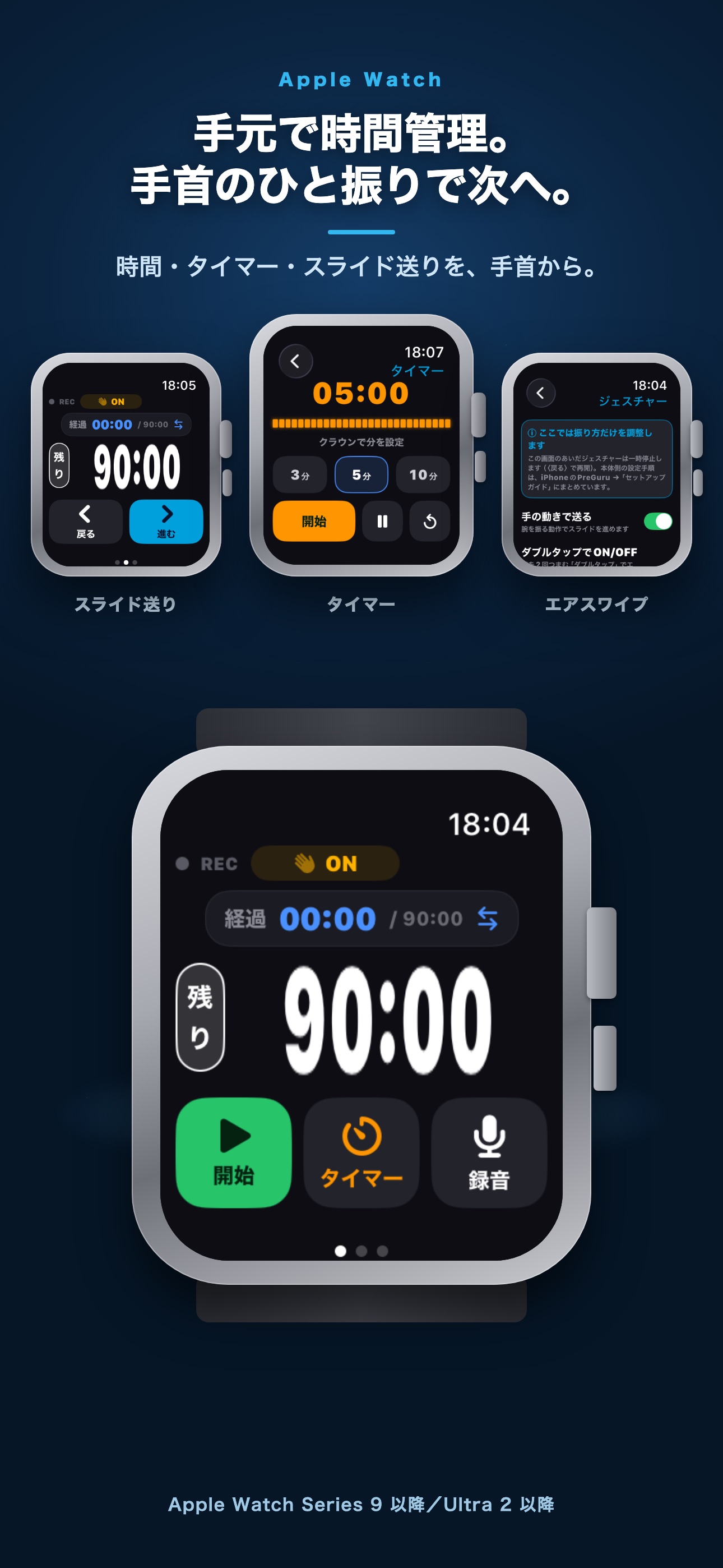
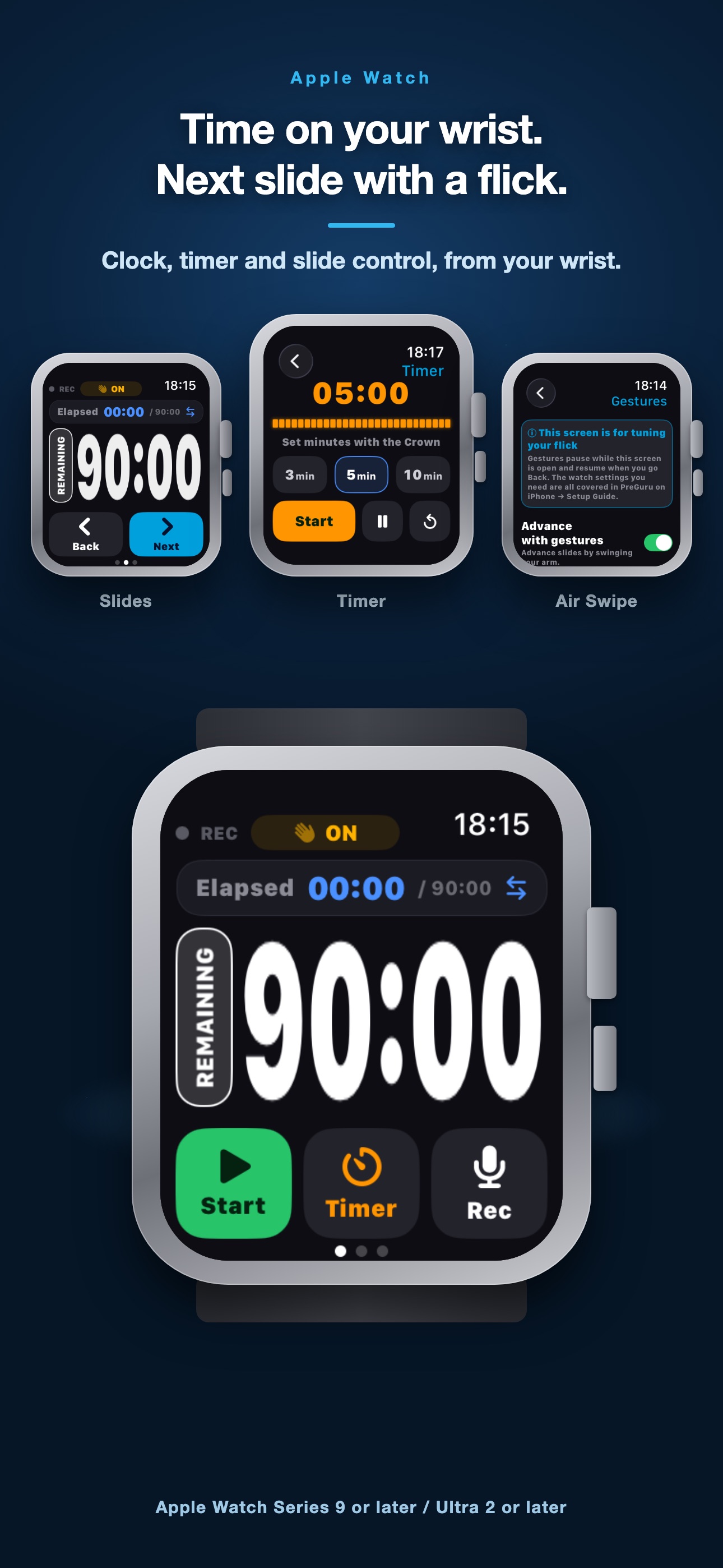
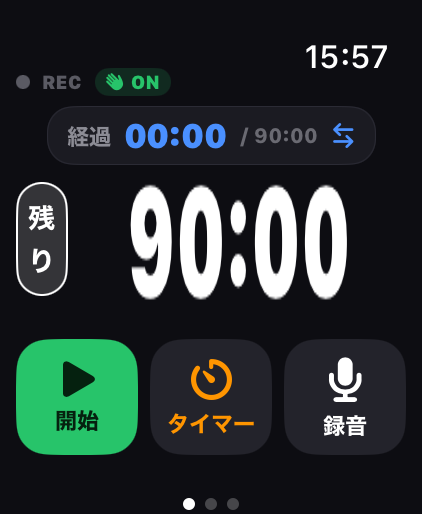
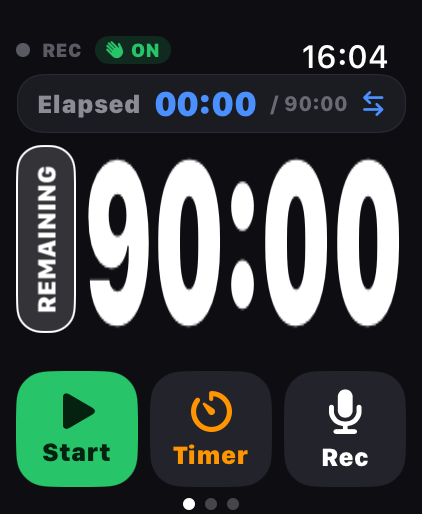
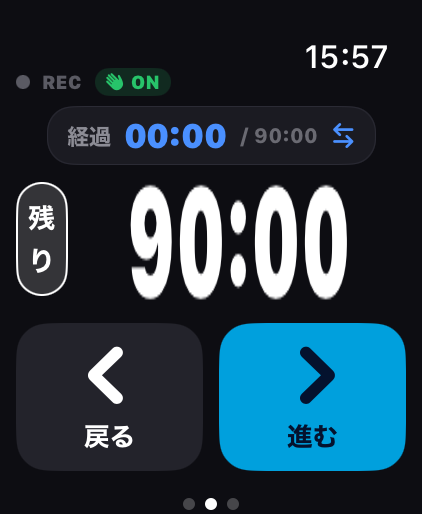
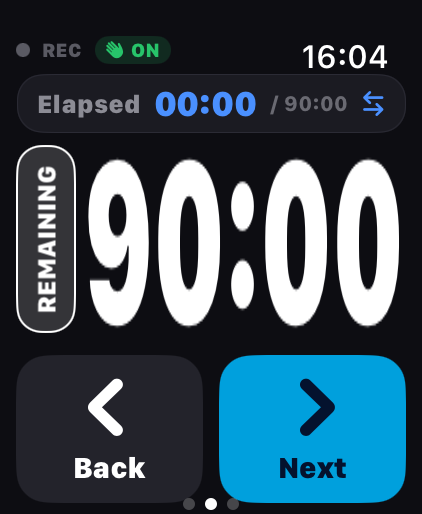
持ち時間も、ワークの進行も、録音も。Apple Watchの01画面が、登壇の流れをまとめて支えます。Talk timing, workshop pacing, and recording. Screen 01 brings your presentation controls together on Apple Watch.
経過と残りを切り替え、開始・一時停止。色や振動の合図で、締めくくるタイミングをつかめます。Switch between elapsed and remaining time, start or pause, and use color and haptic cues to time your closing words.
プレゼンの持ち時間とは別に、ワークや休憩のカウントダウンを操作できます。Run a countdown for exercises and breaks, independently of your talk time.
Watchから録音を開始・停止。音声は接続したiPhoneで録音・保存されます。Start and stop from Watch. Your connected iPhone records and saves the audio.
02 / スライド・ジェスチャーSlides & gestures
02 / AIR SWIPE, WITH LEARNING
画面のボタンで確かに送る。手首のジェスチャーで、聴衆から目を離さず進める。場面に合わせて選べます。Use the on-screen buttons for a deliberate move, or a wrist gesture to keep your eyes on the audience. Choose what suits the moment.
Apple Watchのクリッカー画面から、スライドを次へ・前へ操作できます。Move forward or back from the clicker screen on Apple Watch.
Apple Watchを装着した手の振りでスライドが送れます。ジェスチャーは校正機能や、AI学習機能(送り直後の取り消しで学習)でユーザーの振り方を学び誤発動を抑えます。Advance slides with a wave of the hand wearing Apple Watch. Calibration and AI learning (from undo right after an advance) learn your motion and suppress misfires.
ダブルタップ(対応モデルのみ)でジェスチャーをON/OFF。確実に誤発動を抑止することができます。Toggle gestures on/off with Double Tap (supported models only) — a reliable way to prevent misfires.
03 / 設定内のジェスチャー画面Gesture settings detail
03 / MAKE IT YOURS
03画面の設定から、時間の見せ方も、ジェスチャーの反応も調整。登壇前に、自分に合った使い心地へ。Use screen 03 to adjust timing, display, and gesture response. Make the experience your own before taking the stage.
持ち時間、タイマー時間、文字サイズ・フォント・色、残り時間のアラートなどを調整できます。Adjust talk and timer duration, type size, font, colors, and remaining-time alerts.
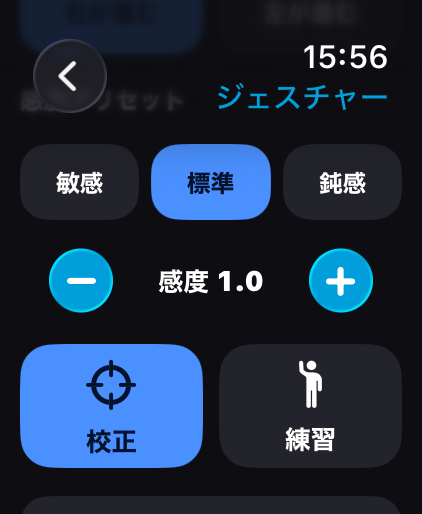
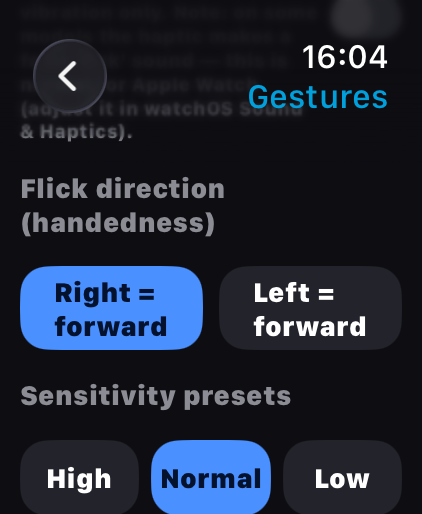
ジェスチャーの校正と感度調整を行い、練習モードで自分の振りを確認できます。Calibrate your gesture, adjust sensitivity, and check your movement in practice mode.
終了時の振動・点滅・音などを設定。話す環境に合わせて調整できます。Configure vibration, flashes, and sound for the setting you present in.
02 / ONE CONNECTED FLOW
Watchとつながる準備の場所。Watchがなくても頼れる、プレゼンのコントロールセンターです。Prepare and connect with Watch, or control your presentation from iPhone alone.
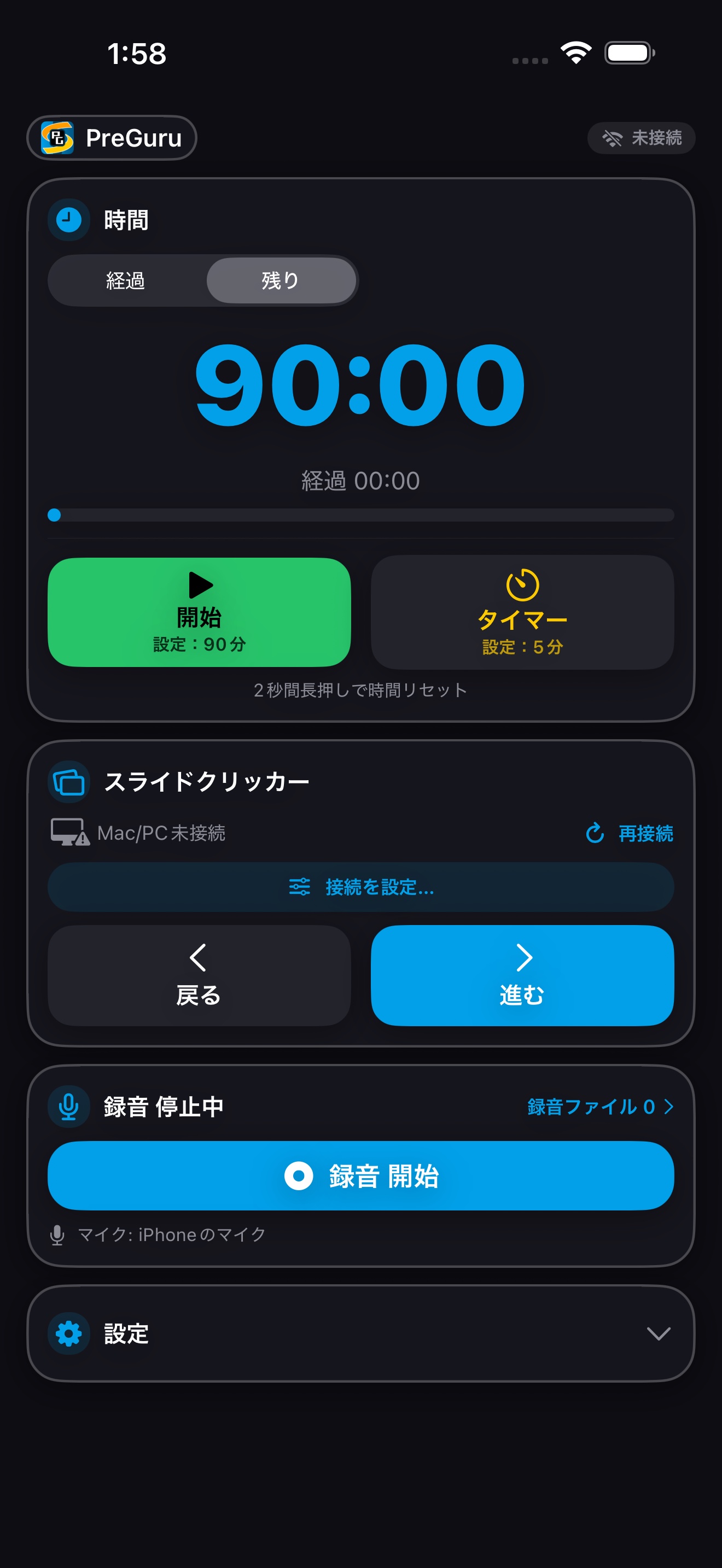
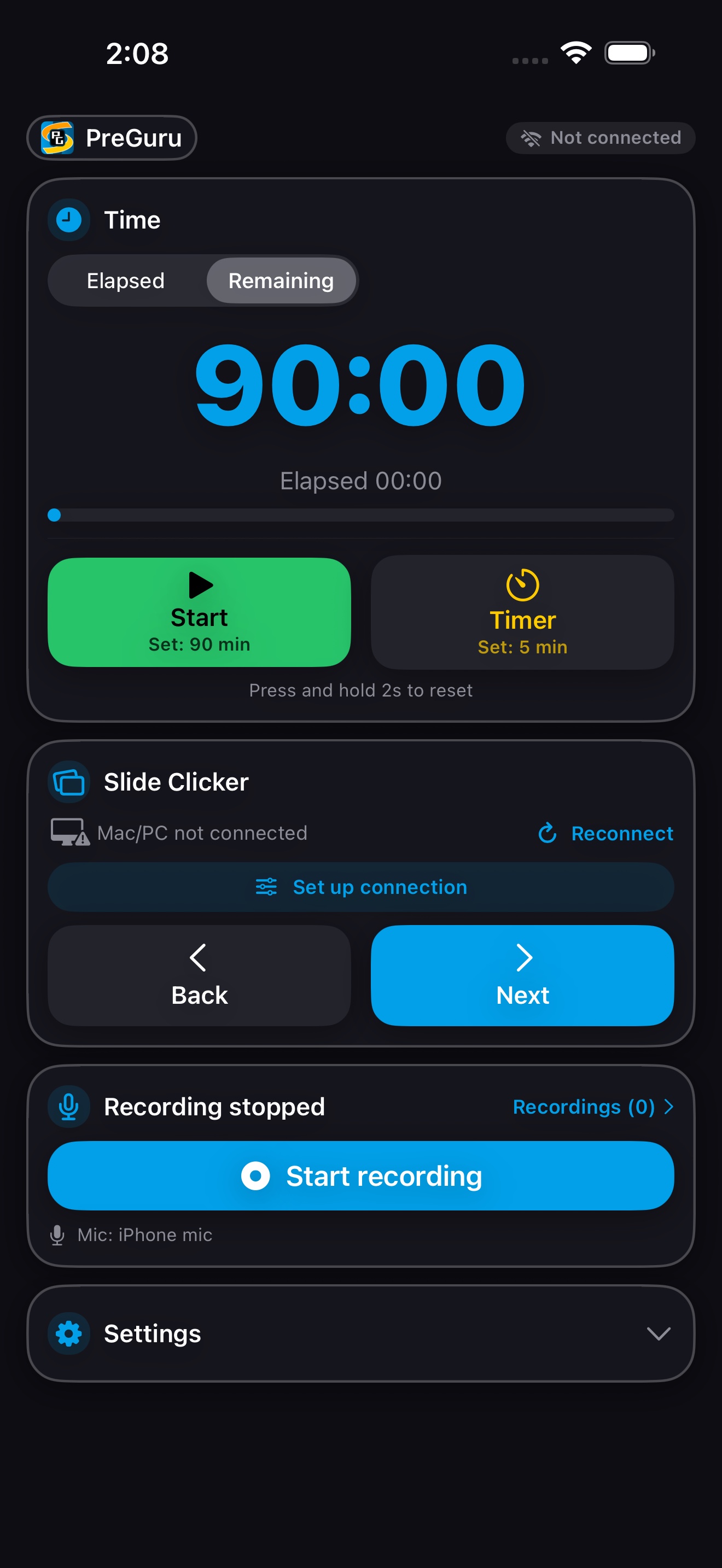
時間・タイマーの設定をWatchへ反映。スライド操作をReceiverへ中継し、Watchからの録音指示も受け取ります。Apply time and timer settings to Watch, relay slide commands to Receiver, and receive recording controls from Watch.
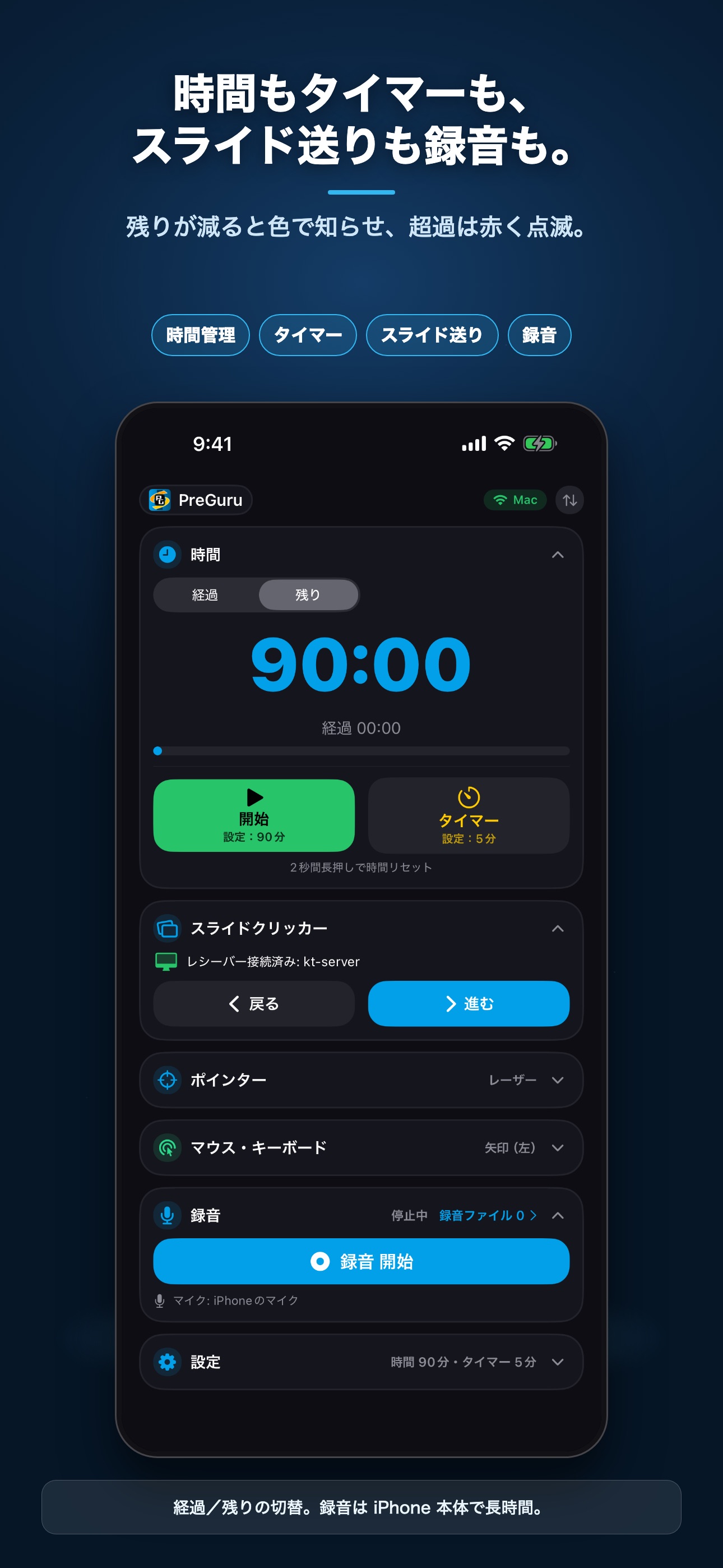
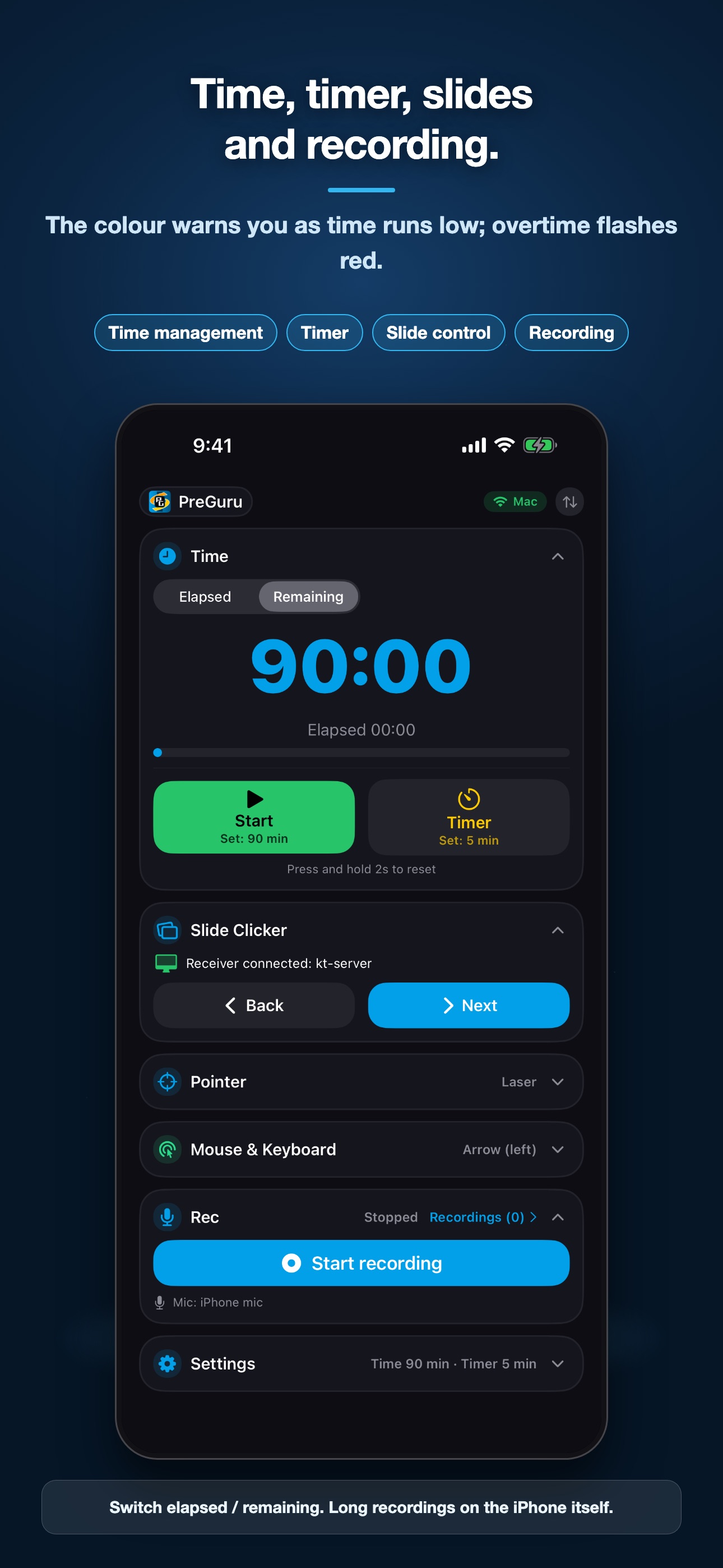
iPhoneの画面で時間管理・タイマー・録音を操作。無料Receiverへ接続すれば、スライドの送り・戻しもできます。Manage time, timers, and recording on iPhone. Connect to the free Receiver to advance and return through your slides.
持ち時間、タイマー、通知や表示を設定し、録音ファイルを管理。iPhoneで整えて、Watchで指揮できます。Set timing, timers, notifications and display, and manage recordings. Prepare on iPhone, then conduct from Watch.
エアスワイプはApple Watchの機能です。iPhoneでのスライド操作は画面のボタンを使います。Air Swipe requires Apple Watch. Slide control on iPhone uses on-screen buttons.
02 / ONE CONNECTED FLOW — RECEIVER
Macに無料のPreGuru Receiverをインストール。iPhoneを経由して、Apple Watchの操作とプレゼンがつながります。Install the free PreGuru Receiver on Mac. Through iPhone, your Apple Watch connects to your presentation.
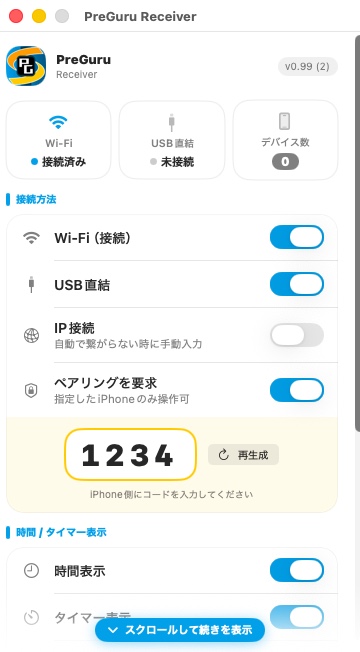
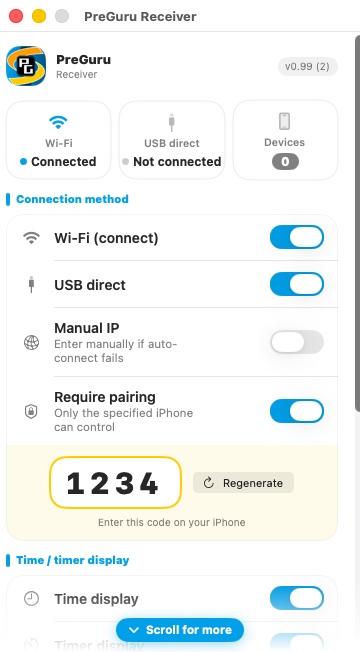
iPhoneからの指示でスライドを送り・戻し。時間とタイマーの情報もReceiverに同期し、Mac側で表示できます。Receive next/back commands from iPhone and display synchronized talk time and timers on your Mac.
MacとiPhoneはWi-Fiに加え、USB直結にも対応。会場の無線環境に頼らない接続を選べます。Connect iPhone to Mac over Wi-Fi or directly by USB, with an option that does not rely on the venue’s wireless network.
USB接続はMac版の機能です。Windows版はWi-Fi接続です。USB is a Mac feature. Windows uses Wi-Fi.Windows用Receiver(正式版 v1.3.7)もご用意しています。詳細はダウンロードをご覧ください。A Windows Receiver (official v1.3.7) is also available. See Downloads for details.
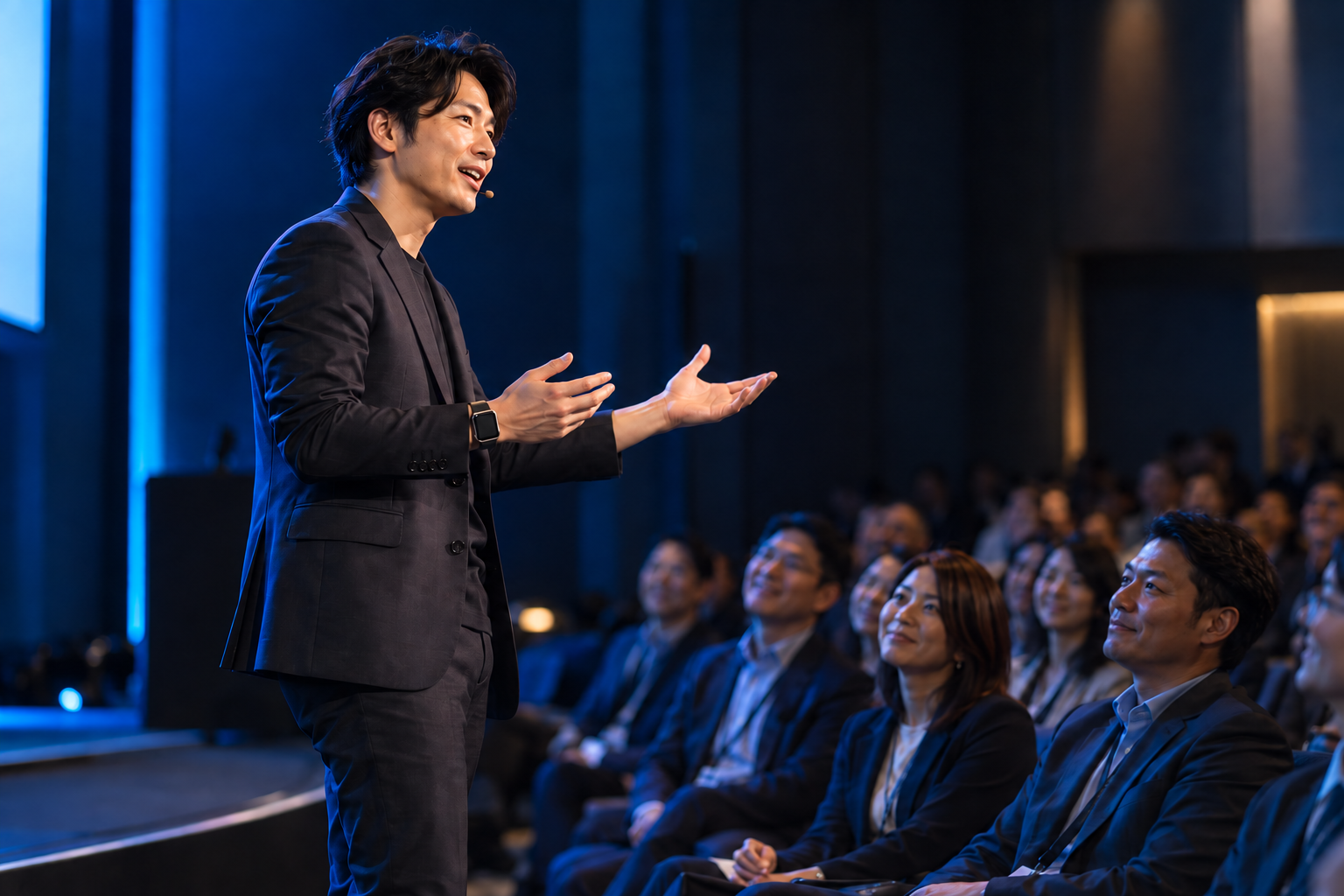
ENCHANT YOUR PRESENTATION.
あなたの言葉と身振りに、もっと自由を。More freedom in every word and gesture.
03 / READY FOR YOUR STAGE
動作環境の確認から、導入・サポートまで。必要な項目を選んでください。From device requirements to setup and support. Choose what you need.
iOS 18.0 以降(iPhone XR・XS 以降)。単体でタイマー・録音・スライド操作が可能。iOS 18.0 or later (iPhone XR / XS or later). Timer, recording, and slide control on its own.
watchOS 11.0 以降(Series 9 以降・Ultra 2 以降)。アクションボタンは Apple Watch Ultra。watchOS 11.0 or later (Series 9 or later / Ultra 2 or later). Action button on Apple Watch Ultra.
macOS 14.0 以降(Apple Silicon / Intel)。USB直結にも対応。macOS 14.0 or later (Apple Silicon / Intel). Direct USB supported.
Windows 10 / 11(64bit)。.NET 8 ランタイム(同梱版は不要)。Windows 10 / 11 (64-bit). .NET 8 runtime (bundled build doesn't need it).
PreGuru Receiverは、Apple Watch・iPhoneの操作をあなたのMac / PCへ届ける無料アプリです。Mac版は正式リリース。時間・タイマー表示、Wi-Fi / USB / Bluetoothの双方向接続、幅広いアプリ対応まで、ビジネスの現場で使い切るために磨き込みました。PreGuru Receiver is the free bridge from Apple Watch and iPhone to your Mac or PC. The Mac edition is our official release, refined for real business rooms with on-screen time, two-way Wi-Fi / USB / Bluetooth connection, and broad app compatibility.
PreGuru(iPhone / Apple Watch)を使うには、パソコン側に無料の受信アプリ「PreGuru Receiver」(Mac/Windows)が必要です。下のボタンから入手できます。つなぎ方は Wi-Fi・USB・Bluetooth。To use PreGuru (iPhone / Apple Watch) you need the free “PreGuru Receiver” app (Mac / Windows) on your computer. Download it below. Connect over Wi-Fi, USB or Bluetooth.
iPhone / Apple WatchアプリはApp Storeで近日公開予定(無料・フルバージョンはアプリ内課金)。Receiverは無料です。The iPhone / Apple Watch app is coming soon (free; Full Version via in-app purchase). The Receiver is free.iPhone / Apple WatchアプリはApp Storeで無料ダウンロード(フルバージョンはアプリ内課金)。Receiverは無料です。The iPhone / Apple Watch app is free on the App Store (Full Version via in-app purchase). The Receiver is free.
利用規約(EULA)に同意いただくとダウンロードできます。上のチェックボックスにチェックを入れてください。Please accept the End User License Agreement to download. Tick the checkbox above.
v1.3.7 ・ macOS 14.0以降 ・ Apple Silicon / Intel対応 ・ 約1.5MB(.dmg・Apple公証済み)・ USB直結対応 ・ 会場のWi-Fiが無くてもiPhoneと直接つながります(USB/Bluetooth)。大切な登壇のための、最も信頼できるReceiverです。v1.3.7 · macOS 14.0 or later · Apple Silicon / Intel · about 1.5MB (.dmg, notarized by Apple) · direct USB. Our most dependable receiver for important moments. Connects directly to the iPhone even without venue Wi-Fi (USB / Bluetooth).
Mac版をダウンロードDownload for Macv1.3.7 ・ Windows 10 / 11(64bit)・ 約51MB(.exeインストーラー / .NET 8 同梱)。トランジスターズ株式会社のAuthenticode証明書で署名済みです。v1.3.7 · Windows 10 / 11 (64-bit) · about 51MB (.exe installer, .NET 8 bundled). Authenticode-signed by transistors Co., Ltd.
Windows版をダウンロードDownload for WindowsPreGuru ・ iOS 18.0以降 / watchOS 11.0以降 ・ Apple Watch版はiPhoneアプリに同梱 ・ App Storeで近日公開(無料・フルバージョンはアプリ内課金)PreGuru · iOS 18.0 / watchOS 11.0 or later · Apple Watch app bundled with the iPhone app · coming soon on the App Store (free; Full Version via in-app purchase)PreGuru ・ iOS 18.0以降 / watchOS 11.0以降 ・ Apple Watch版はiPhoneアプリに同梱 ・ App Storeで無料ダウンロード(フルバージョンはアプリ内課金)PreGuru · iOS 18.0 / watchOS 11.0 or later · Apple Watch app bundled with the iPhone app · free on the App Store (Full Version via in-app purchase)
説明書(PDF)に加え、生成AIがあなたの環境に合わせて伴走サポート。困ったら“AIアシスタント”に聞けます。A PDF manual plus an AI that walks you through setup for your exact device — ask the assistant anytime.
iPhoneとApple WatchにPreGuruを。プレゼンするMac / Windowsには、無料Receiverをインストール。Get PreGuru on iPhone and Apple Watch, and install the free Receiver on your presentation Mac or Windows PC.
同じWi-Fiで接続。会場のWi-Fiが使えなければ、USB直結かBluetoothでも。iPhoneがWatchとプレゼンをつなぎます。Connect over the same Wi-Fi, or by direct USB or Bluetooth if the venue Wi-Fi is not available. iPhone links your Watch to the presentation.
手首の振りを校正し、練習モードで確認。プレゼンを最前面に開き、実際の接続環境で送り・戻しを試します。Calibrate your wrist movement and use practice mode. Open your presentation in the foreground and check next/back on your actual setup.
Apple Watch本体とiPhoneの「Watch」アプリで行います。PreGuruからは変更できません(watchOSがアプリに変更手段を用意していないためです)。These are set on the Apple Watch itself and in the Watch app on iPhone. PreGuru cannot change them, because watchOS gives apps no way to do so.
⚠️ まず、2つの使い方のどちらかを選んでください。Apple Watch の制約で、「腕を下ろしたまま送る」と「ダブルタップ」は同時に使えません(AssistiveTouch をオンにすると watchOS の「ジェスチャ」がオフになり、ダブルタップが使えなくなるためです)。⚠️ First, choose one of two ways to use it. Because of how the Apple Watch works, “flick with your arm down” and “Double Tap” cannot both be had — turning AssistiveTouch on switches off the watchOS Gestures setting, which is what Double Tap needs.
| A:腕を下ろしたまま送る(おすすめ)A: Flick with your arm down (recommended) | B:ダブルタップを使うB: Keep Double Tap | |
|---|---|---|
| ジェスチャGestures | オフoff | オン(手首フリックは必ずオフ)on (Wrist Flick must be off) |
| AssistiveTouch | オンon | オフoff |
| 手首を下げてスリープSleep on Wrist Down | オフoff | (切っても効きません)(has no effect) |
| できることWhat you get | 腕を下ろしたまま振れる。手首フリックの問題も起きないFlick with your arm down; the Wrist Flick problem does not arise | ダブルタップで素早くオン・オフToggle Air Swipe quickly with Double Tap |
| 代償What it costs | ダブルタップ不可・電池の消耗が増えるNo Double Tap; more battery | 腕を上げて画面が点くまで振れないYou must raise your arm and wait for the screen |
以下の①②は B を選んだ場合の設定です。A を選んだ場合は「ジェスチャ」ごとオフになるため、①(手首フリック)は不要です。③④はどちらでも行ってください。Items 1 and 2 below are for option B. With option A the Gestures setting is off altogether, so item 1 (Wrist Flick) does not apply. Items 3 and 4 are worth doing either way.
Apple Watch の 設定 → ジェスチャ → 手首フリック → オフApple Watch: Settings › Gestures › Wrist Flick › off
手首を外側へクイッと返すと文字盤に戻る機能で、既定でオンです。これはエアスワイプとほぼ同じ動きなので、振った瞬間にPreGuruから追い出されてしまいます。③を設定してもこの現象は直りません(手首フリックは「自分で文字盤に戻した」とみなされるため)。This returns you to the watch face when you flick your wrist sharply outward, and it is on by default. It is almost the same motion as an Air Swipe, so a flick can throw you straight out of PreGuru. Setting item 3 will not fix this — a wrist flick is treated as you choosing to go back to the watch face yourself.
iPhone の「Watch」→ アクセシビリティ → AssistiveTouch → ①「AssistiveTouch」を オン → ②「手首を下げているときにスリープ」を オフiPhone Watch app: Accessibility › AssistiveTouch › (1) turn AssistiveTouch ON › (2) turn “Sleep on Wrist Down” OFF
⚠️ ①を必ず先に行ってください。AssistiveTouch がオフのままだと、②のスイッチは操作できるのに、まったく効きません。設定したつもりになりやすい箇所です。
腕を下ろすと Apple Watch はアプリごと止め、その間の振りは拾えません。この設定をすると止まらなくなり、腕を上げてそのまま振れます。電池の消耗は早くなるので、プレゼンの間だけの使い分けがおすすめです。⚠️ Do step 1 first. While AssistiveTouch is off, the switch in step 2 can still be toggled but has no effect at all — it is very easy to believe you have set it when you have not.
When you lower your arm the Apple Watch stops the app itself and flicks made then are not picked up. With this set it keeps running, so you can raise your arm and flick straight away. It does use more battery, so consider turning it on only for the talk.
Apple Watch の 設定 → 一般 → 時計に戻す → PreGuru → 「1時間後」Apple Watch: Settings › General › Return to Clock › PreGuru › After 1 hour
何も操作しないまま時間が経ったときの自動復帰を防ぎます。This prevents the automatic return that happens after a while with no interaction.
Apple Watch の 設定 → 画面表示と明るさ → スリープ解除時間 → 「70秒」Apple Watch: Settings › Display & Brightness › Wake Duration › Wake for 70 Seconds
既定の15秒だと、腕を少し傾けただけで暗くなります。70秒にすると、一度腕を上げればそのまま送り続けられます。At the default 15 seconds it dims as soon as you tilt your wrist. At 70 seconds, one raise keeps you going.
それでも眠ったら:文字盤を指で軽く1回「トン」。触れてから70秒は起きたままで、表示は変わりません。手首に「下がる振動」が来たら、が合図です。大きい時間の経過/残りは2回タップ、エアスワイプのON/OFFは上のチップを3回タップです(v1.0.2 以降)。If it still falls asleep: tap the watch face lightly once. It stays awake for 70 seconds after a touch and the display does not change. The falling buzz on your wrist is your cue. Double-tap the big time to switch elapsed/remaining; triple-tap the chip at the top for Air Swipe ON/OFF (v1.0.2 and later).
インストール・接続・操作・困ったときまでの全手順(PDF)。Full setup, connection, operation, and troubleshooting (PDF).
PDF説明書をダウンロードDownload PDF manual.md をダウンロードして ChatGPT / Claude 等に添付。あなた専用の“AI説明員”が、対話でインストール・操作をサポートします。Download the .md and attach it to ChatGPT / Claude — your personal AI assistant guides setup and operation in a chat.
AIサポート .md をダウンロードDownload AI support (.md)お問い合わせの前に、まずこちらで解決するかご確認ください。検索・カテゴリーで絞り込めます。Before contacting us, check here first. Filter by keyword search or category.
該当する質問が見つかりませんでした。別のキーワードでお試しください。No matching questions. Please try another keyword.
解決しないときはStill need help? サポートページへVisit support
これからのプレゼンテーションは、AIと構想を練り、AIがスライドを描く時代へ進みます。それでも——聴衆に“伝え”、その心を“動かし”、次の“行動”を引き出す。この最も大切な仕事は、あなたにしかできません。人に残された、いちばん人間らしい仕事です。Presentations are entering an era where you shape the ideas with AI, and AI draws the slides. Even then — reaching your audience, moving them, and drawing out their next action — this most important work is yours alone. It is the most human work left to us.
PreGuruは、ハードクリッカーの代わりにとどまりません。プレゼンの設計と、聴衆が魅了される瞬間との間に欠けていたレイヤーです。PreGuru is more than a clicker replacement. PreGuru is the missing layer between presentation design and audience enchantment.
PreGuruは、その一番大切な仕事に、あなたが没頭できるように生まれました。時間、タイマー、スライド送り、ポインター、マウス・キーボード、録音までを、iPhoneとApple Watchの手元から指揮(オーケストレーション)する。あなたは機器操作から解き放たれ、視線と言葉をまっすぐ聴衆に向け、そしてあなたのプレゼンで彼らを魅了できる。優れたプレゼンテーションは、聴衆を動かし、ビジネスを動かします。ぜひ PreGuruをパートナーに、あなたのプレゼンテーションに磨きをかけ、その先にある成功を確実に掴んでください。PreGuru was born so that you can immerse yourself in that work. Timing, timers, slide control, the pointer, mouse and keyboard, and recording — all orchestrated from your iPhone and Apple Watch. Freed from operating equipment, you turn your eyes and your words straight to the audience, and your presentation captivates them. A great presentation moves an audience, and moves a business. Make PreGuru your partner, refine every talk, and take firm hold of the success that lies beyond it.